
You can configure OpenClaw on your PC in about 5 minutes using three basic things: Node.js, an AI API key, and a simple terminal command. You don’t need programming skills or advanced technical knowledge. This guide walks you through the entire process step by step so even beginners can set it up quickly.
Introduction
Imagine having your own AI assistant running directly on your computer.
An assistant that can:
- Manage reminders
- Draft emails
- Organize files
- Run automated tasks
- Respond to messages on platforms like Telegram or WhatsApp
And the best part? You don’t need to pay expensive monthly subscriptions to big tech companies.
That’s exactly what OpenClaw makes possible.
OpenClaw is a powerful open-source AI agent platform that exploded in popularity among developers and tech enthusiasts. In a very short time, it gathered hundreds of thousands of stars on GitHub, becoming one of the most talked-about AI automation tools in 2026.
Instead of just chatting like traditional AI chatbots, OpenClaw can perform real actions for you.
In this guide, you’ll learn exactly how to set up OpenClaw on your PC in just a few minutes, even if you’ve never worked with command lines before.
What Is OpenClaw?
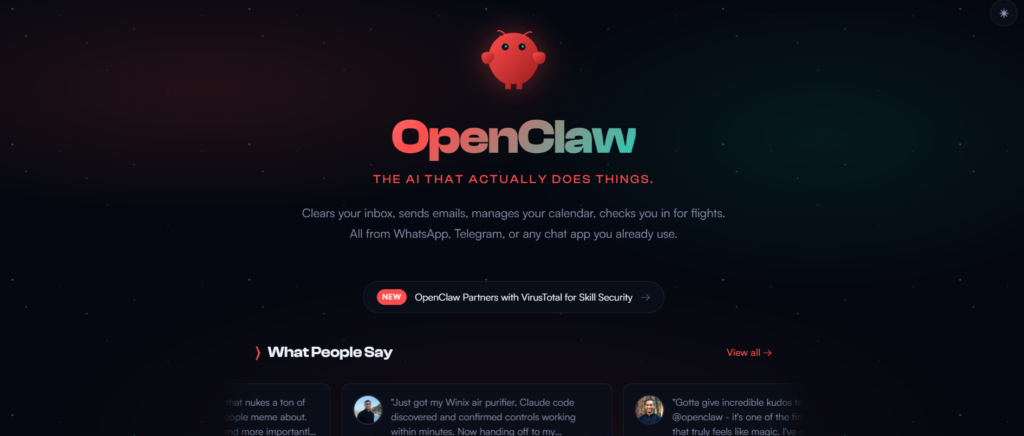
OpenClaw is an AI agent framework that runs locally on your computer and connects to powerful language models.
Think of it like a digital assistant that lives inside your PC.
Unlike standard AI chatbots that simply respond to questions, OpenClaw can interact with real tools and systems.
For example, it can:
- Create or edit files
- Organize folders
- Draft emails
- Search the internet
- Set reminders
- Automate workflows
You communicate with it through messaging interfaces like:
- Web chat
- Telegram
- Slack
- Discord
This means you can send your AI agent instructions just like messaging a friend, and it performs those tasks automatically.
OpenClaw is open-source, meaning anyone can install and customize it for free. The only cost involved is the AI model API usage, which is usually very small.
Requirements Before Installing
Before starting the setup process, make sure you have the following items ready.
| Requirement | Description | Cost |
|---|---|---|
| Computer (Windows/Mac/Linux) | Any modern PC works | Free |
| Node.js (version 20+) | Required runtime environment | Free |
| AI API Key | Provides AI intelligence | Pay-as-you-go |
| Terminal / Command Prompt | Used to run commands | Free |
| 5–10 minutes | Setup time | Free |
You do not need coding skills to complete this installation.
Step 1 – Install Node.js
Node.js is the runtime environment used by OpenClaw.
Installing it takes only a few minutes.
How to install Node.js
- Open your browser
- Visit the official Node.js website
- Download the LTS (Long Term Support) version
- Run the installer
- Continue using the default installation settings
Once installation is complete, verify that Node.js is working.
Check installation
Open your Terminal or Command Prompt and run:
node --version
If the terminal shows something like:
v20.x.x
then Node.js has been successfully installed.
If it doesn’t work immediately, simply restart your terminal or computer.
Step 2 – Install OpenClaw
Installing OpenClaw requires only one command.
Open your terminal and type:
npm install -g openclaw
This command downloads and installs OpenClaw globally on your computer.
The installation usually takes 30 seconds to 2 minutes depending on your internet speed.
Verify installation
Run:
openclaw --version
If you see a version number, the installation is complete.
Step 3 – Generate an AI API Key
OpenClaw requires an AI provider API key so it can use advanced language models.
You can choose from several providers.
Option 1 – Anthropic Claude
- Create an account on the Anthropic console
- Go to API Keys
- Click Create Key
- Copy the generated key
Claude models are known for being very reliable for AI agents.
Option 2 – OpenAI
- Visit the OpenAI platform dashboard
- Go to API Keys
- Generate a new key
- Copy and store it safely
Option 3 – Google Gemini
- Go to Google AI Studio
- Click Get API Key
- Copy your key
Some Gemini models offer free usage tiers.
⚠️ Important:
Never share your API key publicly. Treat it like a password.
Step 4 – Run the OpenClaw Setup Wizard
OpenClaw includes an easy setup wizard that configures everything automatically.
Run this command:
openclaw init my-agent
Then move into the project folder:
cd my-agent
Start the onboarding wizard:
openclaw onboard
You’ll answer a few simple questions.
Setup Questions
Choose AI Provider
Select your preferred provider using arrow keys.
Enter API Key
Paste the key you generated earlier.
Choose Messaging Platform
Select WebChat if you want the simplest setup.
Enable Memory
Select Yes so your agent remembers previous interactions.
Once complete, OpenClaw automatically saves the configuration in a secure .env file.
Step 5 – Launch Your AI Agent
Now it’s time to start your AI assistant.
Run:
openclaw start
You will see something like:
Gateway running at http://localhost:18789
WebChat ready at http://localhost:18789/chat
Open your browser and visit:
http://localhost:18789/chat
You will see the OpenClaw chat interface.
Try sending your first command:
What tasks can you help me with?
You can also try commands like:
- “Create a reminder for tomorrow at 9 AM.”
- “Organize my downloads folder.”
- “Generate a task list for today.”
Your AI assistant will begin performing tasks directly on your computer.
Bonus: Connect OpenClaw to Telegram
One of the coolest features is controlling your AI assistant from your phone.
Steps
- Open Telegram
- Search for BotFather
- Send
/newbot - Follow instructions
- Copy your bot token
Then run:
openclaw config set channels.telegram.token YOUR_TOKEN
Restart the agent:
openclaw start
Now you can send commands to your AI assistant from Telegram.
How Much Does OpenClaw Cost?
OpenClaw itself is completely free.
The only expense is the AI API usage.
Typical costs:
| Usage Level | Monthly Cost |
|---|---|
| Light use | $1 – $3 |
| Moderate use | $3 – $5 |
| Heavy automation | $10+ |
Many users spend less than the cost of a coffee each month.
If you use local AI models, it can even run without API costs.
Important Safety Tips
Because OpenClaw can control tools on your computer, it’s important to use it carefully.
1. Start with simple tasks
Begin with reminders, summaries, or drafts before allowing file operations.
2. Set API spending limits
Most providers allow daily spending limits to prevent unexpected charges.
3. Use separate accounts
Create dedicated email or service accounts for your AI assistant.
4. Install trusted extensions
Only install skills from trusted repositories.
Common Problems and Fixes
| Issue | Cause | Solution |
|---|---|---|
| Command not recognized | Node.js not installed correctly | Reinstall Node.js |
| API key error | Incorrect key | Generate a new key |
| Chat interface not opening | Firewall blocking connection | Allow Node.js in firewall |
| Slow responses | Using heavy models | Switch to smaller models |
You can also run:
openclaw doctor
This command scans your installation and identifies issues.
Final Thoughts
Setting up OpenClaw may sound complicated, but in reality it takes just a few minutes.
After installation, you’ll have a powerful AI assistant running directly on your computer.
Unlike regular chatbots, this AI agent can:
- perform real tasks
- automate workflows
- remember conversations
- interact with tools
And all of this happens locally on your own system.
For professionals, students, and creators, OpenClaw can quickly become one of the most useful productivity tools available today.
Start with small tasks, explore its features, and soon you’ll have a fully automated AI assistant helping you every day.